Guide
How to Save Prompts in Gemini
Gemini is getting a built-in answer to this question: skills, reusable instructions that replace Gems. They are worth knowing, and they have limits. This guide shows what Gemini keeps and for how long, what Instructions for Gemini, notebooks and skills are for, where skills stop, and how to keep prompts that should outlast one app.
Last updated: October 10, 2026
What Gemini keeps, and for how long
Your chats are listed in Gemini’s side panel, and the panel has a search: open the menu, click Search, type, press Enter. Both depend on Keep Activity, which is on by default for adults.
The list is not permanent. By default, Gemini Apps activity older than 18 months is deleted automatically; you can change that to 3 or 36 months, or turn it off. With Keep Activity off, chats are kept for up to 72 hours and are not listed at all. A prompt that lives only in an old chat has an expiry date.
The built-in options, and what each is for
- Instructions for Gemini, under Personal Intelligence in the settings, apply to every chat. They are the place for how you want answers, added one at a time.
- Notebooks are a space for one subject, with their own sources and their own instructions.
- Gems are customised versions of Gemini with a name, instructions and files. Google removes them for personal accounts starting in November 2026 and recreates them as skills. Workspace business accounts follow in March 2027 and education accounts in June 2027.
- Skills are reusable instructions. You call one by typing a slash and its name (Google says the character is changing to @), or Gemini applies one by itself when the task fits. They need a personal Google Account, age 18 or over, and Keep Activity on.
Where skills stop
Skills are Gemini’s own answer to saved prompts: Google’s release notes call them “saved shortcuts to faster prompting”. Three limits decide whether they are enough for you:
- Google describes skills as working in the background: you select one and Gemini follows it. Its help pages do not describe placing the saved text in the message box for you to change before you send it.
- They do not yet work with Canvas, Deep Research, or creating video and music, and they are not available on work or school accounts for now.
- They belong to Gemini. A skill can be downloaded as a file, and Gemini can import skills made elsewhere. It is still a file to carry, not a library that is open in the other apps you use.
A fair split: a skill for a procedure Gemini should follow, and a saved prompt for text you want to see, adjust and send yourself.
Save a prompt from the Gemini message box
- Install PromptTray from the Chrome Web Store and open Gemini. You do not need an account: prompts are saved in your browser, and signing in later adds sync and a backup.
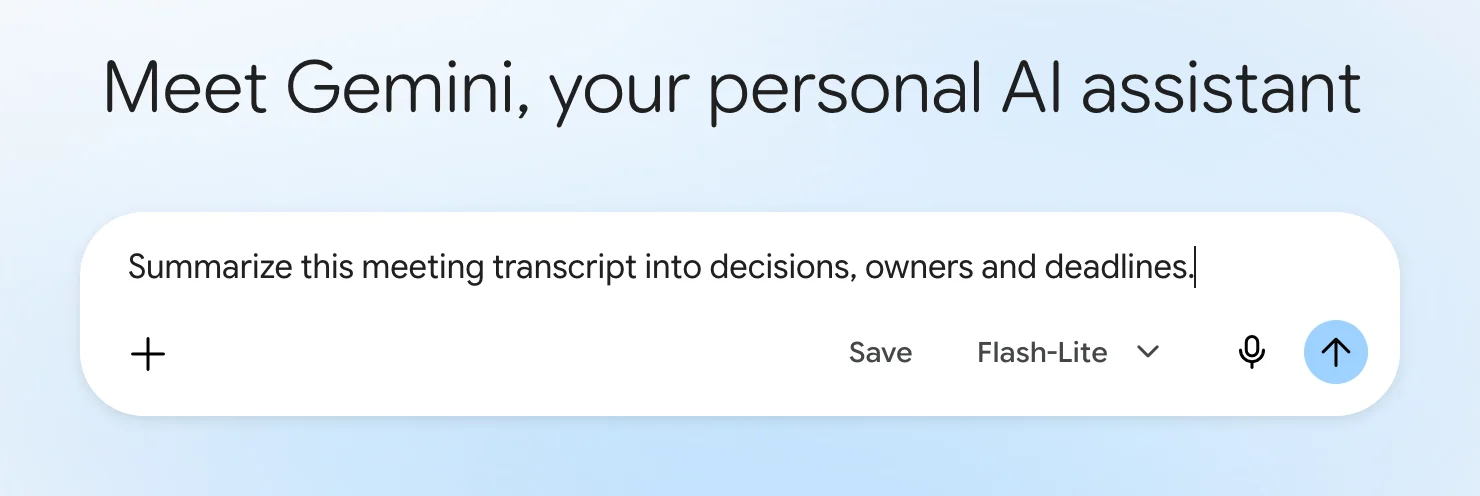
- Type or paste the prompt in the message box. A Save button appears in the box as soon as there is text.
- Press Save. PromptTray’s panel opens with the prompt filled in and a title taken from its first line. Shorten the title, pick a category, add tags if you want them, and press Save Prompt.
To use it again, press Control Shift K in any chat. Spotlight opens over the page: type a few letters of the title and press Enter. The prompt is in the message box, and nothing is sent until you send it.
Prompts worth saving for Gemini
Good candidates are the prompts you repeat with different material each time:
- Plan from a brief: “Turn this brief into a plan for {timeframe}: milestones, an owner for each, and the first three tasks.”
- Compare options: “Compare {option A} and {option B} for {use case}. A table of the differences first, then your pick and the reason.”
- Rewrite for a reader: “Rewrite this for {reader}. Keep the facts, cut what they already know, and put the action they need to take first.”
- Describe an image: “A photo of {subject} in {setting}, {time of day} light, shot on a 35mm lens, shallow depth of field.”
The words in curly braces are variables: PromptTray asks for them in a short form each time you insert the prompt. The guide to organizing AI prompts has the rules for titles, categories and tags.
If Gemini is not the only AI app you use
The same library opens in 21 other apps, with the same shortcut. There is a guide like this one for ChatGPT, Claude, Perplexity and Grok, and one on keeping one library across AI apps.
What this page says about Gemini comes from Google’s own pages, read on October 10, 2026: recent chats, Gemini Apps activity, Instructions for Gemini, notebooks, skills, the move from Gems to skills, release notes. Apps change, so check there if something here looks out of date.
FAQ
Does Gemini have saved prompts?
It has skills: reusable instructions you call by typing a slash and the skill’s name. They need a personal Google Account, age 18 or over, and Keep Activity on. Google describes them as working in the background.
What happens to my Gems?
Google removes Gems for personal accounts starting in November 2026, for Workspace business, enterprise and non-profit accounts in March 2027, and for education accounts in June 2027. It says existing Gems are recreated as skills automatically, and you can recreate them by hand earlier.
How long does Gemini keep my chats?
By default, activity older than 18 months is deleted automatically. You can set 3 or 36 months, or turn auto-delete off. With Keep Activity off, chats are kept for up to 72 hours and do not appear in your list.
Does PromptTray work in Gemini without an account?
Yes. Prompts are saved in your browser, and a free account adds sync and a backup. The free plan covers 30 prompts and 5 categories; pricing shows what Premium adds.
Keep your Gemini prompts one shortcut away
PromptTray adds a Save button to the Gemini message box and a search over everything you have saved. It works the same way in 21 other AI apps.