Guide
How to Save Prompts in Grok
Grok keeps your conversations on a history page, and it has custom instructions, Projects, skills and Automations. No page its maker publishes describes a list of saved prompts for chat. This guide shows what those features do, as far as they are documented, and how to keep a prompt for next time.
Last updated: October 10, 2026
What Grok keeps
When you are signed in, your past conversations are on the history page at grok.com/history, and its maker says history is synced between the web and the phone apps. A conversation held in Private Chat is not shown there and is deleted within 30 days.
Little is published about how Grok works. The pages at x.ai say where the history is, and not how to search it.
The built-in options, as far as they are documented
- Custom instructions are listed as a way to tailor responses to your style and needs. Where they are set and how long they can be is not on the pages at x.ai.
- Projects are workspaces you create and upload files to.
- Skills, added in May 2026, let you teach Grok a way of doing something once so that it keeps it across conversations. You make one by describing it in a chat, uploading a file or writing it out.
- Automations, added in July 2026, are instructions you write like a chat message, name and save. Grok then runs them on a schedule or when an email arrives, and each run is a fresh request.
An Automation is the nearest thing to a saved prompt, and it is built for a job that runs by itself. None of the pages at x.ai describes a list of prompts you pick from and put into the message box.
Save a prompt from the Grok message box
- Install PromptTray from the Chrome Web Store and open Grok. You do not need an account: prompts are saved in your browser, and signing in later adds sync and a backup.
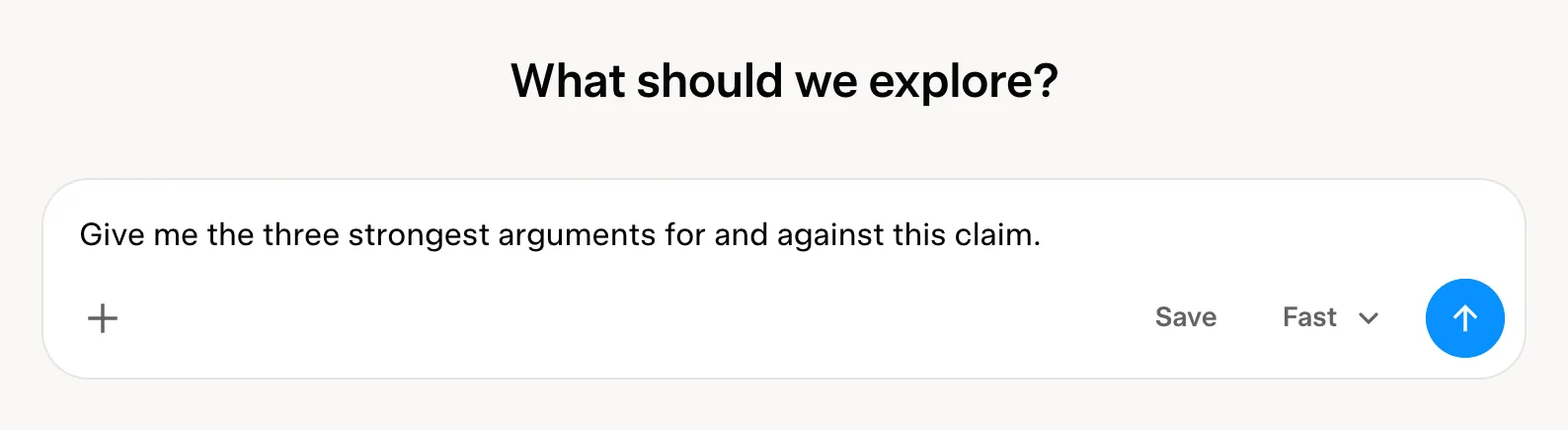
- Type or paste the prompt in the message box. A Save button appears in the box as soon as there is text.
- Press Save. PromptTray’s panel opens with the prompt filled in and a title taken from its first line. Shorten the title, pick a category, add tags if you want them, and press Save Prompt.
To use it again, press Control Shift K in any chat. Spotlight opens over the page: type a few letters of the title and press Enter. The prompt is in the message box, and nothing is sent until you send it.
Prompts worth saving for Grok
Short prompts are the easiest to lose, because they never seem worth filing. These are worth it:
- Arguments for and against: “Give me the three strongest arguments for and against this claim: {claim}. Say which side has the better evidence.”
- Summarize the reaction: “Summarize the reaction to {event}: the main positions, who holds them, and what is still unknown.”
- Explain to a newcomer: “Explain {topic} to someone new to it in {length}, then list three things experts still argue about.”
- Draft a short post: “Draft a post about {subject} for {audience}, under 280 characters, with no hashtags. Give three versions.”
The words in curly braces are variables: PromptTray asks for them in a short form each time you insert the prompt. The guide to organizing AI prompts has the rules for titles, categories and tags.
If Grok is not the only AI app you use
The same library opens in 21 other apps, with the same shortcut. There is a guide like this one for ChatGPT, Claude, Gemini and Perplexity, and one on keeping one library across AI apps.
What this page says about Grok comes from its maker’s own pages, read on October 10, 2026: the Grok product page, the consumer FAQ, the announcement of skills, the announcement of Automations. Apps change, so check there if something here looks out of date.
FAQ
Does Grok have saved prompts?
No page at x.ai describes a list of saved prompts for chat, as of October 2026. Skills keep a way of working across conversations, and Automations save an instruction and run it on a schedule or when an email arrives.
Where is my Grok chat history?
At grok.com/history when you are signed in. Conversations held in Private Chat are not listed there, and Grok’s maker says they are deleted within 30 days.
Does PromptTray work with Grok inside X?
No. PromptTray works on grok.com. Grok inside X is a different page, and the extension does not run there.
Does PromptTray work in Grok without an account?
Yes. Prompts are saved in your browser, and a free account adds sync and a backup. The free plan covers 30 prompts and 5 categories; pricing shows what Premium adds.
Keep your Grok prompts one shortcut away
PromptTray adds a Save button to the Grok message box and a search over everything you have saved. It works the same way in 21 other AI apps.